Instagram Chat Themes Not Working? Your 2025 Fix Guide
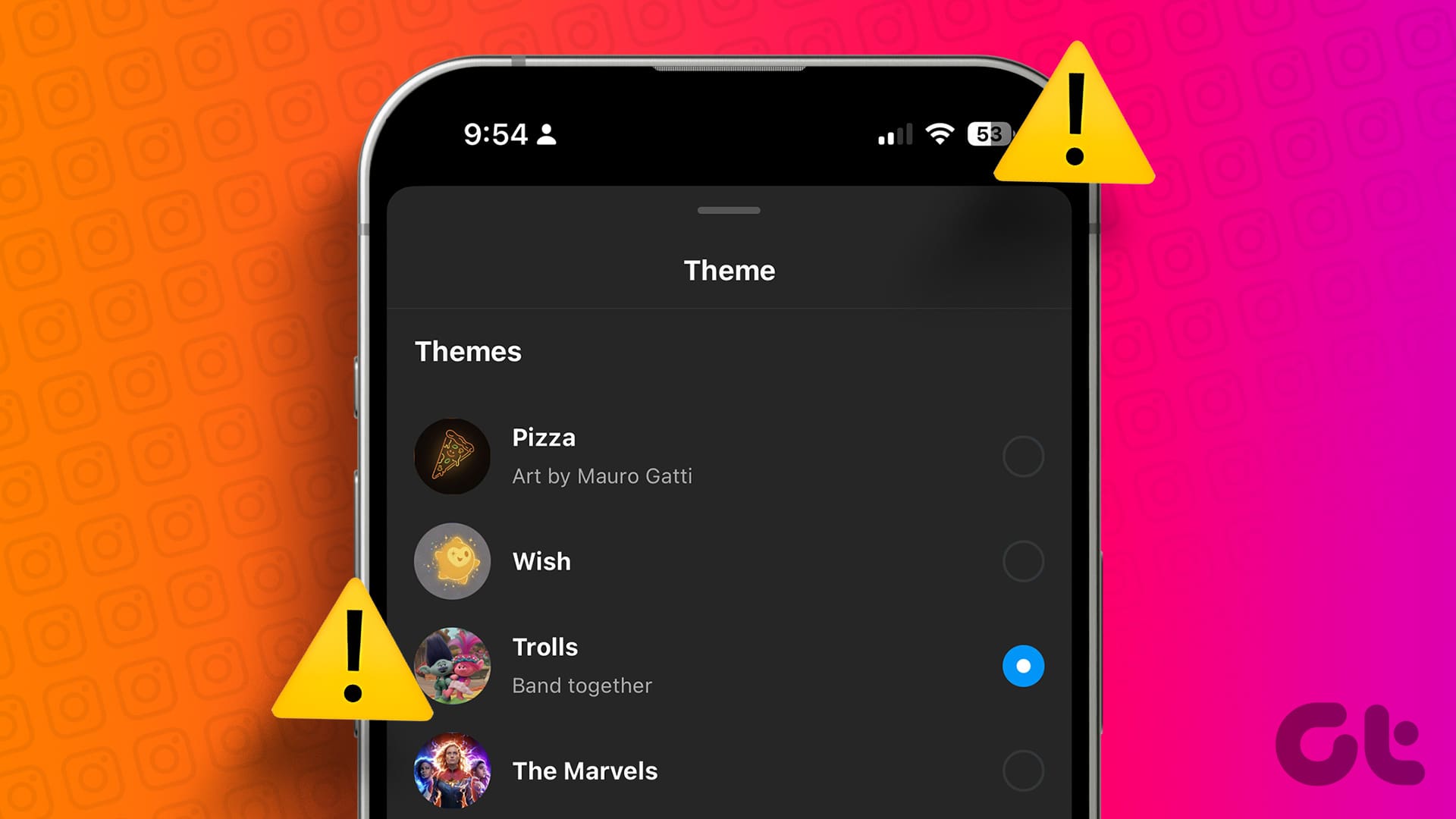
There's nothing quite like personalizing your digital space, and for many Instagram users, chat themes are a beloved way to express personality and set the mood for conversations. Whether you’re opting for a vibrant gradient with friends or a calming monochromatic tone with family, these aesthetic touches make your direct messages (DMs) truly your own. So, when your Instagram chat themes suddenly stop working—perhaps the "Theme" option is missing, your chosen theme won't save, or it frustratingly reverts to default—it can be incredibly annoying. If you’re experiencing this common hiccup in 2025, you’re not alone. The good news? This comprehensive, user-focused guide is here to help you understand exactly why your Instagram themes not working and provides actionable, step-by-step solutions to get them back on track.
Instagram's chat themes are more than just pretty colors; they significantly enhance the user experience by offering:
- Personalization: Making each conversation feel unique and tailored.
- Mood Setting: Changing colors and backgrounds to match the vibe of your chat or the occasion.
- Celebrations: Access to limited-edition themes for special events, holidays, or birthdays, adding an extra layer of festivity.
When these features fail, your chats can feel dull and impersonal, stripping away a fun aspect of Instagram. Let’s dive into the core reasons behind this issue and explore how to resolve them.
Understanding Why Your Instagram Themes Aren't Working in 2025
Before jumping into solutions, it’s crucial to understand the underlying causes that prevent your Instagram chat themes from functioning correctly. Based on common user reports and how Instagram operates, here are the most frequent culprits:
- Your App is Outdated: Instagram frequently rolls out updates, bringing new features, bug fixes, and performance enhancements. If your app version is significantly old, it might lack the necessary code to support chat themes or have unpatched bugs that prevent them from working. This is often the simplest fix but easily overlooked.
- Cross-App Messaging Not Enabled: Themes, along with other advanced DM features like message reactions and Vanish Mode, are part of Instagram's integration with Facebook Messenger. If you haven't enabled this "Update Messaging" feature, your account might not have access to these functionalities, including the theme option itself.
- Glitchy Cache or Corrupted App Data: Over time, your Instagram app accumulates temporary files and data (cache). While usually helpful for faster loading, a corrupted or overloaded cache can interfere with the app's functions, leading to display issues or features not saving correctly. This is particularly common on Android but can affect iOS users too, albeit with a different solution.
- Gradual Feature Rollouts: Instagram often deploys new features in stages. This means that while some users might have themes immediately, others might be queued to receive the update later, even if they have the latest app version. This isn't a problem you can fix directly, but it's important to be aware of.
- Device or OS Compatibility Issues: Older smartphones or outdated operating systems (iOS or Android) might struggle to run the latest Instagram features efficiently. Insufficient storage space can also lead to app malfunctions, preventing features like themes from loading or saving properly.
- Temporary Server-Side Glitches: Occasionally, the problem might not be with your app or device at all, but rather with Instagram's own servers. These intermittent issues can affect specific features globally or regionally.
Understanding these reasons helps target the most effective solution, ensuring you restore your personalized chat experience efficiently. For a deeper dive into common causes, you might find Why Instagram DM Themes Break & How to Fix Them Step-by-Step a useful read.
Step-by-Step Fixes: Your Actionable Guide to Restoring Chat Themes
Let's walk through the most effective solutions, starting with the simplest and progressing to more comprehensive troubleshooting methods.
1. Confirm You're Changing Themes Correctly
Before trying any fixes, let's ensure you're using the correct method to change themes. Sometimes, the problem isn't a malfunction but a procedural oversight.
- Launch the Instagram app.
- Tap the Messenger icon (paper plane) at the top right to go to your DMs.
- Tap on the specific chat whose theme you wish to change.
- Inside the chat, tap the name of the person or group at the very top.
- You should see an option labeled "Theme." Tap it.
- Browse through the available themes and colors, then tap the one you want to apply.
If the "Theme" option is missing or doesn't respond, proceed to the next steps.
2. Update Your Instagram App
This is often the quickest and most effective solution, as many bugs are resolved with new updates.
- For iPhone Users (App Store):
- Open the App Store.
- Tap your profile picture in the top right corner.
- Scroll down to see pending updates, or search for "Instagram" and check its app page.
- If an update is available, tap "Update."
- For Android Users (Google Play Store):
- Open the Google Play Store.
- Tap your profile icon in the top right corner.
- Select "Manage apps & device" > "Updates available."
- Find Instagram and tap "Update," or search for Instagram directly in the Play Store and update from its app page.
- After Updating: It's always a good idea to restart your phone after an app update to ensure all changes are fully integrated.
3. Enable Cross-App Messaging Features
Themes are intrinsically linked to Instagram's integration with Messenger. If this isn't active, themes won't appear.
- Open your Instagram app.
- Go to your profile screen by tapping your profile picture in the bottom right.
- Tap the three horizontal lines (menu icon) in the top right.
- Select "Settings and privacy."
- Scroll down and look for "Messages and story replies" or sometimes simply "Messages." Tap it.
- You should see an option like "Update Messaging" or "How you receive messages." Ensure this feature is enabled or updated. Follow any prompts to activate the new messaging experience.
4. Clear Instagram's Cache and Data
A fresh start for the app's internal data can resolve many lingering issues.
- For Android Users (Clear Cache):
- Go to your phone's Settings app.
- Tap "Apps" or "Apps & notifications."
- Find and tap "Instagram" in the list of apps.
- Tap "Storage" or "Storage & cache."
- Tap "Clear Cache." (You can also try "Clear Data" if "Clear Cache" doesn't work, but be aware this will log you out and might clear some settings, though it won't delete your chats or media).
- Restart your Instagram app.
- For iPhone Users (Reinstall App): iOS doesn't offer a direct way to clear an app's cache without deleting it.
- Delete Instagram: Press and hold the Instagram app icon on your home screen until it jiggles. Tap the "X" or "Remove App," then "Delete App."
- Restart your iPhone: This clears any residual temporary data.
- Reinstall Instagram: Go to the App Store, search for "Instagram," and download it again.
- Log back into your account. A fresh installation often resolves deeper bugs from corrupted installs.
If you're still facing issues after these steps, particularly with cache-related problems, our article Restore Instagram Themes: Troubleshoot Outdated App & Cache Issues offers more in-depth guidance.
5. Log Out and Log Back In
This simple trick can refresh your account's connection to Instagram's servers, often resolving minor syncing glitches.
- Open Instagram.
- Go to your profile.
- Tap the three horizontal lines (menu icon) in the top right.
- Scroll down and tap "Log Out."
- Wait a few seconds (or a minute), then log back into your account.
6. Check Device Compatibility and Storage
Ensure your device isn't the bottleneck. Old operating systems (iOS or Android) might not fully support the latest Instagram features. Also, check your phone's storage. If it's critically low, apps can behave erratically. Try freeing up some space by deleting unnecessary files or apps.
7. Try on Another Device
This is a valuable diagnostic step. If you can log into your Instagram account on another phone or tablet and the themes work there, it strongly suggests the problem is with your original device, not your Instagram account itself. This points towards issues like device compatibility, software conflicts, or persistent cache problems.
Advanced Troubleshooting & What to Do When All Else Fails
If you've diligently followed all the steps above and your Instagram themes not working issue persists, it's time for more advanced measures.
1. Check Instagram's Server Status
Sometimes, the issue isn't on your end. Websites like DownDetector.com allow you to check if Instagram is experiencing widespread outages or specific feature malfunctions. If the servers are down, patience is your best course of action.
2. Report the Issue to Instagram
If it's not a server issue and nothing else has worked, the next step is to inform Instagram directly. This helps them track bugs and roll out fixes.
- Go to your Instagram profile.
- Tap the three horizontal lines > "Settings and privacy."
- Scroll down and select "Help."
- Tap "Report a problem."
- Provide as much detail as possible about the issue, including when it started, what steps you've tried, and if possible, attach a screenshot or screen recording of the problem (e.g., the missing "Theme" option).
3. Revisit Pending Updates and Gradual Rollouts
Even if you've updated, Instagram might have further micro-updates or you might be in a region where the feature rollout is delayed. Keep an eye on the App Store/Google Play for any new Instagram updates over the next few days. Sometimes, simply waiting for Instagram to fully push the feature to your account is the only solution.
4. Consider a Factory Reset (Extreme Measure)
This is a last resort, primarily for device-specific issues that affect multiple apps, not just Instagram. A factory reset will wipe all data from your phone, so ensure you have a complete backup of everything before considering this step. It's usually overkill for a single app feature, but it can resolve deep-seated OS conflicts.
Conclusion
It can be truly frustrating when a cherished personalization feature like Instagram chat themes stops working, especially when you’re used to tailoring every aspect of your digital communication. However, as this 2025 fix guide demonstrates, the problem is often solvable with a few straightforward troubleshooting steps, ranging from a simple app update to clearing a stubborn cache. By methodically working through these solutions, you stand an excellent chance of restoring your vibrant and personalized Instagram DM experience. Remember to keep your app updated, maintain your device, and don't hesitate to report persistent issues to Instagram. Happy chatting, with all the themes you love!